
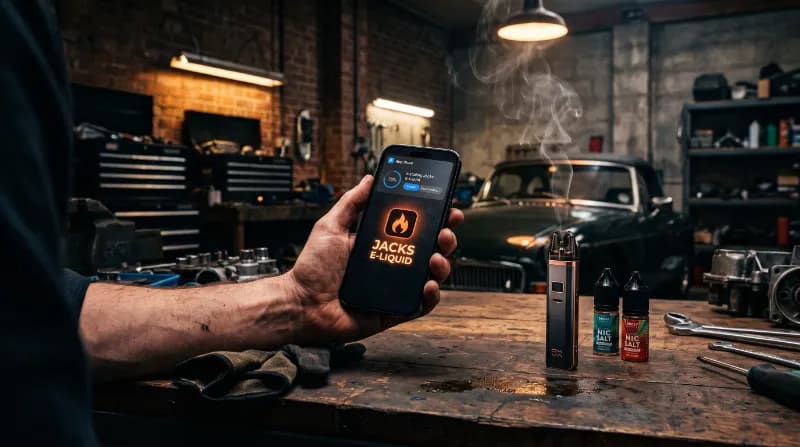
An Orderly Guide to Installing Jacks E-Liquid as an App on Your Smartphone
There is a peculiarly British habit of overcomplicating procedures that ought to be entirely straightforward. We observe it when someone attempts to wire a domestic three-pin plug using an uninsulated butter knife, we see it in the bewildering layout of municipal ring roads, and we certainly see it whenever modern mobile operating systems attempt to mediate between a consumer and an e-commerce website.
Consider the mechanical predicament. You are in your workshop, garage, or kitchen. You take a gentle draw from your device, only to be met with a dry, acrid rasp. The wicking cotton in your coil is exhausted. It is dead. In that exact moment, you do not want to embark upon an expedition across the wider internet. You do not wish to unlock your telephone, open a mobile web browser, wade through twenty-four forgotten tabs containing half-read car road tests or recipes for braised red cabbage, mistype an address with cold thumbs, and wait for a third-party search engine to arbitrate your visit.
What you actually require is a clean, dedicated icon resting neatly on your smartphone screen. You tap it once. The digital storefront appears immediately—free of URL bars, navigation clutter, and browser chrome. You locate your Aspire AF Mesh Coils or a fresh bottle of Jacks Virginia Rolling E-Liquid, proceed directly through to our encrypted checkout, settle securely using your debit or credit card, and carry on with your afternoon.
Technically, this arrangement is achieved by deploying what the software industry calls a Progressive Web App. You are not downloading hundreds of megabytes of bloated code from an overseas tech marketplace. Instead, you are instructing your phone’s operating system to run the live Jacks website as a standalone local utility.
Understanding the Architecture: Browser vs Standalone App
Before handling the glass screen, it helps to understand the fundamental difference between browsing a shop inside a standard browser tab and pinning it as an independent web launcher:
- Screen Geometry: A standard mobile browser clutters your screen with search bars, forward and back arrows, bookmark menus, and tab counters. A pinned web app eliminates all of this, running full screen just like a purpose-built piece of software.
- Storage Footprint: While native applications downloaded from marketplace stores frequently weigh between 80 MB and 250 MB, our web launcher utilizes cached web assets that consume less than 2 MB of your device’s solid-state flash memory.
- System Privacy: Native applications frequently demand intrusive background permissions, such as continuous location tracking, access to contacts, and background telemetry. A web shortcut operates under strict sandbox protocols, requesting zero invasive permissions.
- Catalog Synchronization: Rather than waiting for weekly application updates to download over cellular masts, our web launcher connects straight to our live UK database. When new stock arrives, you see it instantly.
The Two-Minute Setup Procedure
- Open Safari or Chrome and load the store homepage cleanly in your browser.
- Access the menu by tapping the Share button on iOS or the three vertical dots on Android.
- Choose Add to Home Screen from the list of options to pin the progressive app.
- Confirm the installation by tapping Add or Install to position the launcher on your home grid.
Step-by-Step Guide for Apple iPhone (Safari)
Apple’s mobile operating system possesses immense structural rigidity. This is admirable when designing an arched masonry viaduct, but somewhat pedantic when configuring consumer electronics. To place an independent launcher on an iPhone, you must execute the process through Apple’s built-in Safari browser. Apple does not permit third-party browsers to pin shortcuts directly to the home screen engine.
Prerequisites
- An Apple iPhone running iOS 16.4 or later.
- The standard Apple Safari web browser.
- A steady mobile data or Wi-Fi connection.
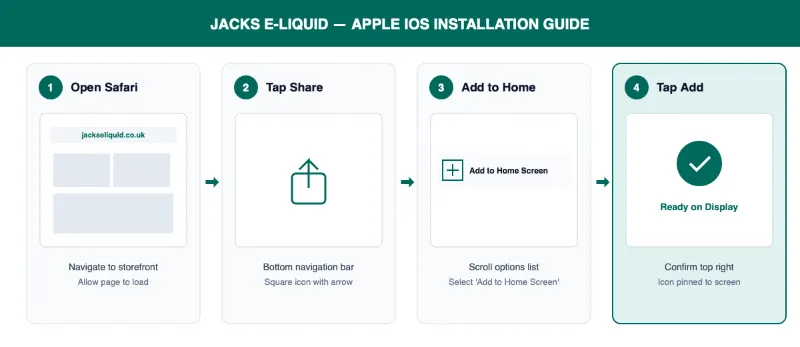
Installation Instructions
- Launch Safari and navigate directly to the Jacks E-Liquid storefront. Allow the page layout, categories, and inventory tables to load completely into local memory.
- Cast your eyes to the horizontal toolbar running along the bottom margin of your screen. In the exact centre, you will see a square icon with an arrow pointing perpendicularly upwards. Tap this Share button once.
- An options drawer will slide up over your screen. Scroll down past your messaging contacts and sharing shortcuts until you find the option labelled Add to Home Screen, which sits alongside a square icon containing a plus symbol. Tap it.
- A confirmation screen will appear displaying the official Jacks monogram and title. You can leave this as standard or shorten the label to simply "Jacks" for a cleaner appearance on your home grid.
- In the top right corner of the screen, tap the blue Add button.
Your iPhone will immediately close Safari and return you to your application grid. You will find the Jacks icon positioned neatly in the next available space. When you tap it, the browser controls vanish, presenting our full catalogue in an uninterrupted, full-screen frame.
Step-by-Step Guide for Google Android (Chrome)
The Android ecosystem approaches this task in a refreshingly utilitarian fashion. Because the underlying architecture is open, Google Chrome provides direct hooks into the operating system’s application drawer and home display.
Prerequisites
- An Android smartphone operating modern Google Play Services.
- The Google Chrome browser (or Samsung Internet).
- Approximately ten seconds of patience.
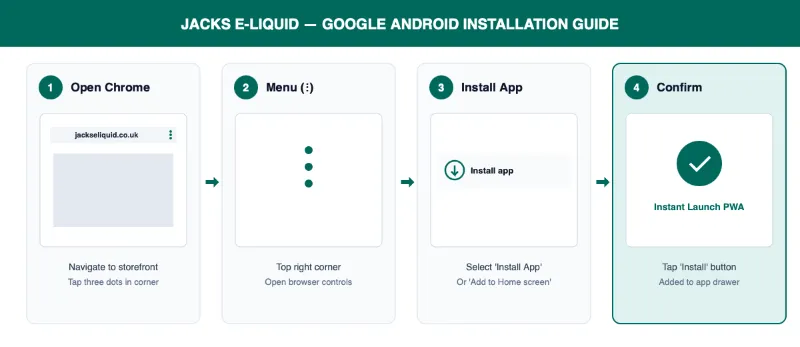
Installation Instructions
- Launch Chrome and visit the Jacks E-Liquid home page.
- Direct your gaze to the top right-hand corner of your display. You will find three vertically aligned dots. Tap these dots to open the browser’s administrative menu.
- Look down through the menu options. Chrome will automatically detect our Progressive Web App code and display either Install app or Add to Home screen. Tap this option.
- A system dialogue box will appear asking to confirm that you want to install the Jacks app. Tap the Install button.
- Android will process the package in the background. Within three seconds, the Jacks icon will appear on your primary home display and inside your alphabetical app drawer.
Routine Supplies & Direct Card Settlement
Once your standalone icon is secured, reordering essential consumables becomes an exercise in calm, methodical efficiency rather than a digital chore.
Sensible Preventative Maintenance Reserves
- Aspire PockeX Coils: Maintain at least two sealed coils in reserve to prevent unexpected downtime.
- Innokin Prism T18E Coils: Keep one unopened five-pack in your desk drawer.
- Nicohit 10ml Salts: Keep three to five bottles in rotating reserve, stored away from direct radiator heat
- Spare Glass Cylinders: Always keep one replacement glass tube for your tank in your workshop spares tin.
When you arrive at the checkout, our billing process is equally sensible. Rather than wrestling with third-party digital wallets that frequently impose arbitrary restrictions on independent UK vaping retailers, our secure checkout handles credit and debit cards directly via encrypted UK merchant banking rails. Enter your card details once, allow your device’s secure keychain to store the billing address for future visits, and your order is logged, picked, and packed for Royal Mail dispatch without delay.
Should you discover on a wet Tuesday afternoon that your Innokin Endura T18E Kit needs fresh coils or your reserve of Hangsen E Liquid Atom Range is running dangerously low, do not go hunting across search engines. Simply tap the Jacks emblem on your glass screen, specify your requirements, settle securely with your card, and return to whatever sensible project you were originally undertaking.

Why Does My Vape Taste Burnt? 5 Fixes
A burnt hit usually means a dry or worn-out coil. Learn five quick fixes - priming, wattage and coil care - and how...
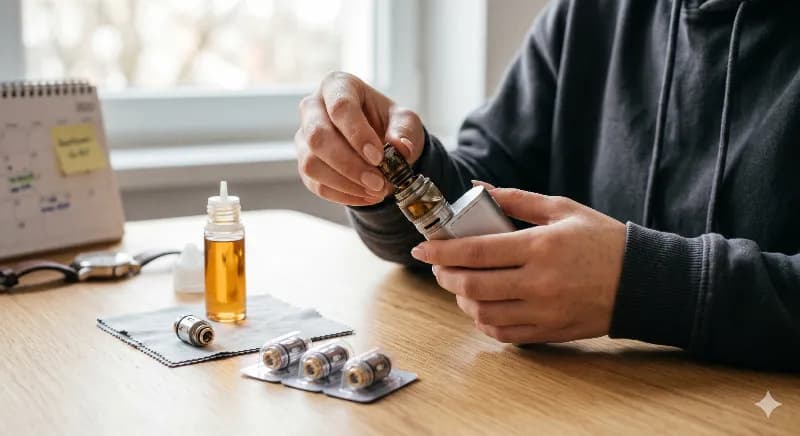
How Often Should You Change a Coil?
Most vapers replace their coil every one to two weeks. Learn the signs yours is due, what shortens coil life, and...

Ultimate V2 E-Liquid: All 41 Flavours
All 41 Ultimate V2 flavours in one place - freebase strengths from 0mg to 18mg, the right PG/VG at each strength...